Automated Keyword Research: SE Ranking API with n8n, Make, or Claude
Keyword research across a client book slows down at setup. Exporting and reformatting the same data account by account takes hours, and keyword sets now have to cover AI search visibility as well as rankings. Three automation paths remove most of that work. The right one depends on whether you need a fixed schedule or room for follow-up questions.
-
Three paths, three fits.
n8n suits scheduled pipelines you can audit and rerun. Make suits teams that already run scenarios there. Claude with the SE Ranking MCP suits exploratory research, and Claude Code routines can now run it on a schedule.
-
SE Ranking’s n8n node has 225 operations across 22 resources,
with ready-made workflow templates for keyword research and competitor gap analysis.
-
Make’s SE Ranking app has over 220 modules
and a Make an API Call module for endpoints without a native module, such as the keyword suggestion endpoints.
-
The SE Ranking MCP exposes more than 180 tools,
including project management tools that can change your account.
-
Credits depend on the endpoint.
Keyword suggestion endpoints bill per returned keyword, and AI search endpoints bill thousands of credits per request, so estimate a run before you schedule it.
What automated keyword research looks like
Automated keyword research is a programmatic workflow: scheduled data pulls feed batch processing, and the outputs route to spreadsheets, content briefs or downstream tools without anyone triggering each step. A well-organized keyword research process still depends on a person running every pull. Automation removes that dependency.
The SE Ranking API is the data layer for all three paths. It gives you programmatic access to SE Ranking’s keyword data and suggestions across every client account you manage. Keyword metrics refresh monthly, so a pipeline that runs more often than that returns the same volumes between refreshes.
Each path connects to that data layer differently, and each fits a different point in a mature SEO automation tools stack.
Prerequisites: what you need before you start
You need an SE Ranking account with API access and a clear view of how credits work.
Get your SE Ranking API key
In SE Ranking, click the API icon in the left navigation, open Dashboard, then click Create API key. Name the key after the integration, then copy it somewhere secure. One key works for both the Data API and the Project API, and you send it in an Authorization: Token YOUR_API_KEY header with each request.
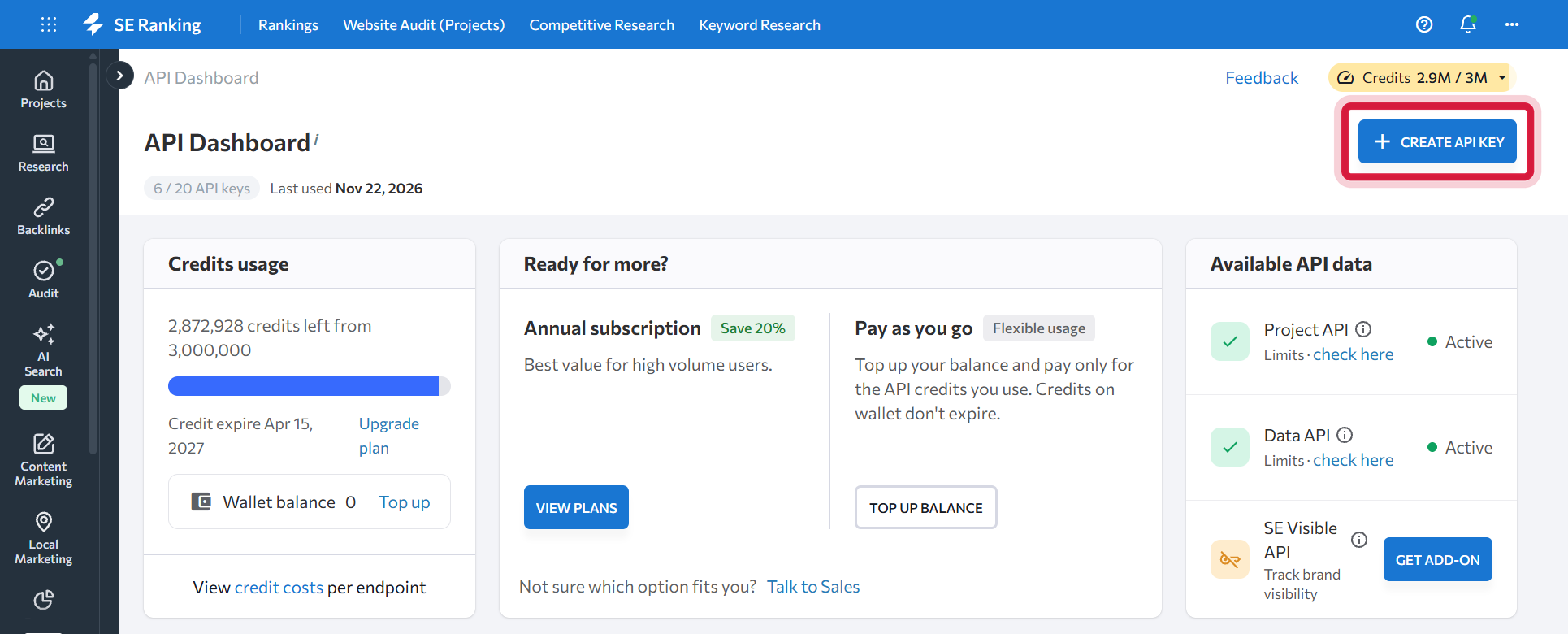
Create a separate key for each integration so you can revoke one without disrupting the others. If you work in a sub-account, ask the account admin for the key. The MCP’s sign-in button doesn’t connect sub-accounts, and API access sits with the master account. Setup details are in SE Ranking’s API access guide.
Understand credits and rate limits
The Data API bills in credits, and only successful requests consume them. Failed requests (4xx or 5xx responses) cost nothing. Each endpoint charges either a flat amount per request or an amount per returned record.
Plans include a monthly Data API credit allowance (Core 25,000 and Growth 100,000), and the 14-day free trial includes 100,000 credits with full endpoint access. For more volume, pay-as-you-go packs start at $50 for 250,000 credits, and the annual API add-on starts at $45 a month for 3 million credits. Check the subscription page for current prices.
These unit costs come from SE Ranking’s credit table and Keyword Research API documentation:
Cost
100 credits per request, up to 5,000 keywords per request
Cost
10 credits per returned keyword
Cost
1 credit per returned keyword
Cost
100 credits per request
Cost
1,800 credits per request
Cost
7,500 credits per request
Cost
200 credits per record
100 credits per request, up to 5,000 keywords per request
10 credits per returned keyword
1 credit per returned keyword
100 credits per request
1,800 credits per request
7,500 credits per request
200 credits per record
The suggestion endpoints drive cost. One hundred similar-keyword pulls that each return 100 keywords cost 100,000 credits, while a single AI search leaderboard call uses 30% of Core’s monthly allowance.
Pro tip: Check your balance with GET /v1/account/subscription before and after a 20 keyword test run. The request costs 0 credits, and the difference in units_left shows what the run really cost.
The Data API default rate limit is 10 requests per second per key, measured over a rolling one-second window. The Project API allows 5 requests per second, and the free trial allows 1 for the Data API. Requests over the limit return HTTP 429.
How to automate keyword research with n8n
The n8n path suits scheduled, reproducible pipelines that write results to Google Sheets, with no API code beyond connecting credentials. It fits teams that want a workflow they can audit and rerun on a fixed cadence across multiple client accounts.
Step 1: Install the SE Ranking node in n8n
n8n is an open-source workflow automation platform available as cloud or self-hosted. SE Ranking’s node is a verified community node. On n8n Cloud, open the Nodes panel, search for “SE Ranking” and install it. On a self-hosted instance, install @seranking/n8n-nodes-seranking through n8n’s community nodes flow and restart n8n.
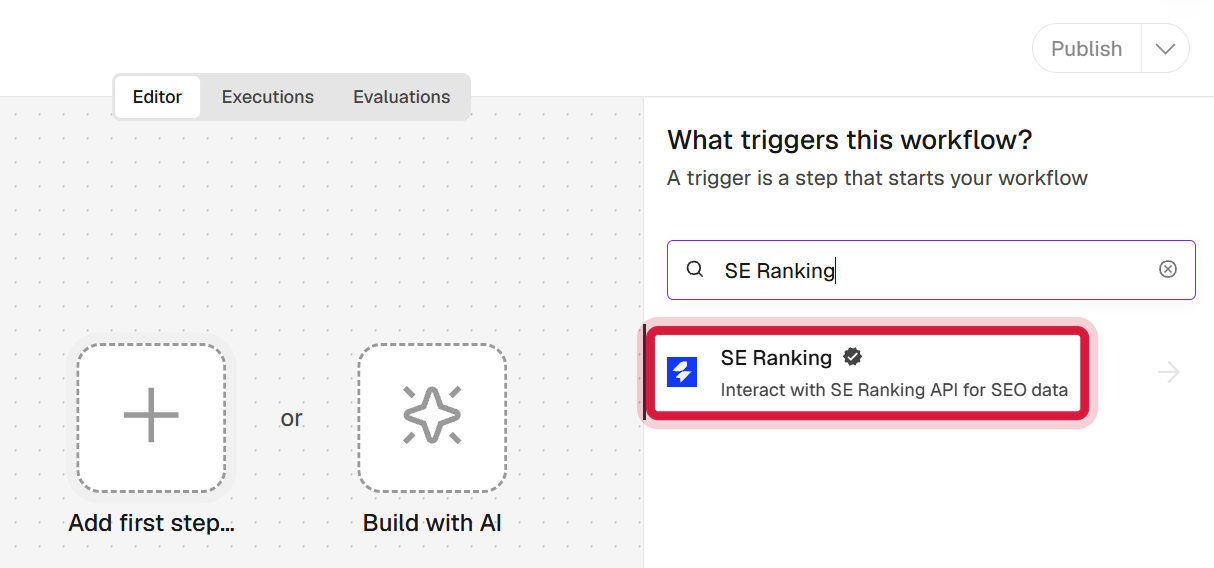
Create an SE Ranking API credential and paste in your API key. One credential works for every SE Ranking operation in the workspace. Version 2.0 of the node merged the Data API and Project API credentials in May 2026, so re-save the credential on any workflow you built with version 1.x. Integration details are at n8n.io/integrations/se-ranking/.
Step 2: Configure your keyword batch input
Start your workflow with a Schedule Trigger node, or a Webhook node if you want to run it on demand. Monthly runs suit keyword metrics, because the underlying data refreshes monthly.
Seed keywords can come from a static list or a Google Sheets column. For Sheets, add a Google Sheets node and set the operation to Get Row(s). It returns one item per row, and n8n runs each later node once per item. So add an Aggregate node (Individual Fields, with your column name as the input field) to combine the rows into a single array. Without it, 20 keywords mean 20 API requests instead of one.
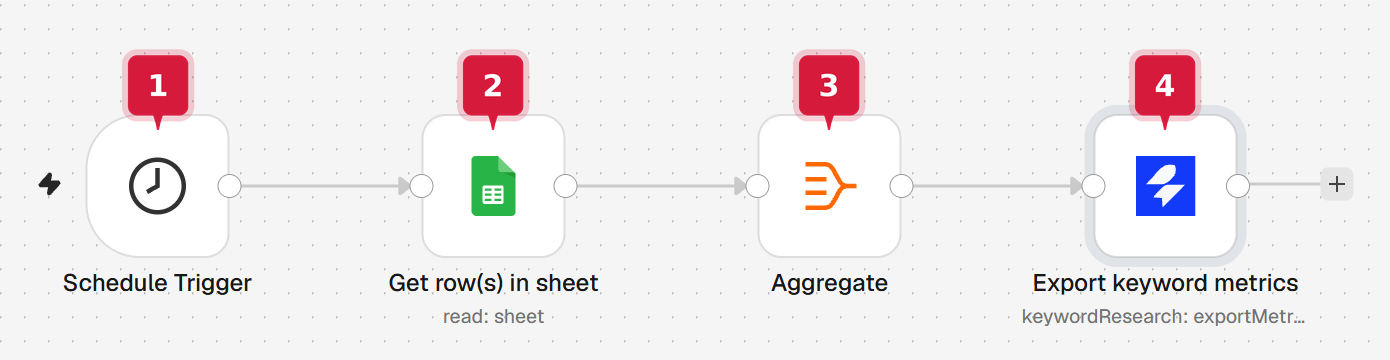
The node’s Export Metrics operation accepts up to 700 keywords per request, so split larger lists into batches of 700 or fewer.
Step 3: Select keyword research operations
Open the SE Ranking node and choose the Keyword Research resource. Export Metrics is the primary operation, and it returns these fields for each keyword:
- Search volume
- CPC and paid competition
- Keyword difficulty on a 0 to 100 scale
- Search intent codes (informational, commercial, transactional, local and navigational)
- A 12 month search volume history
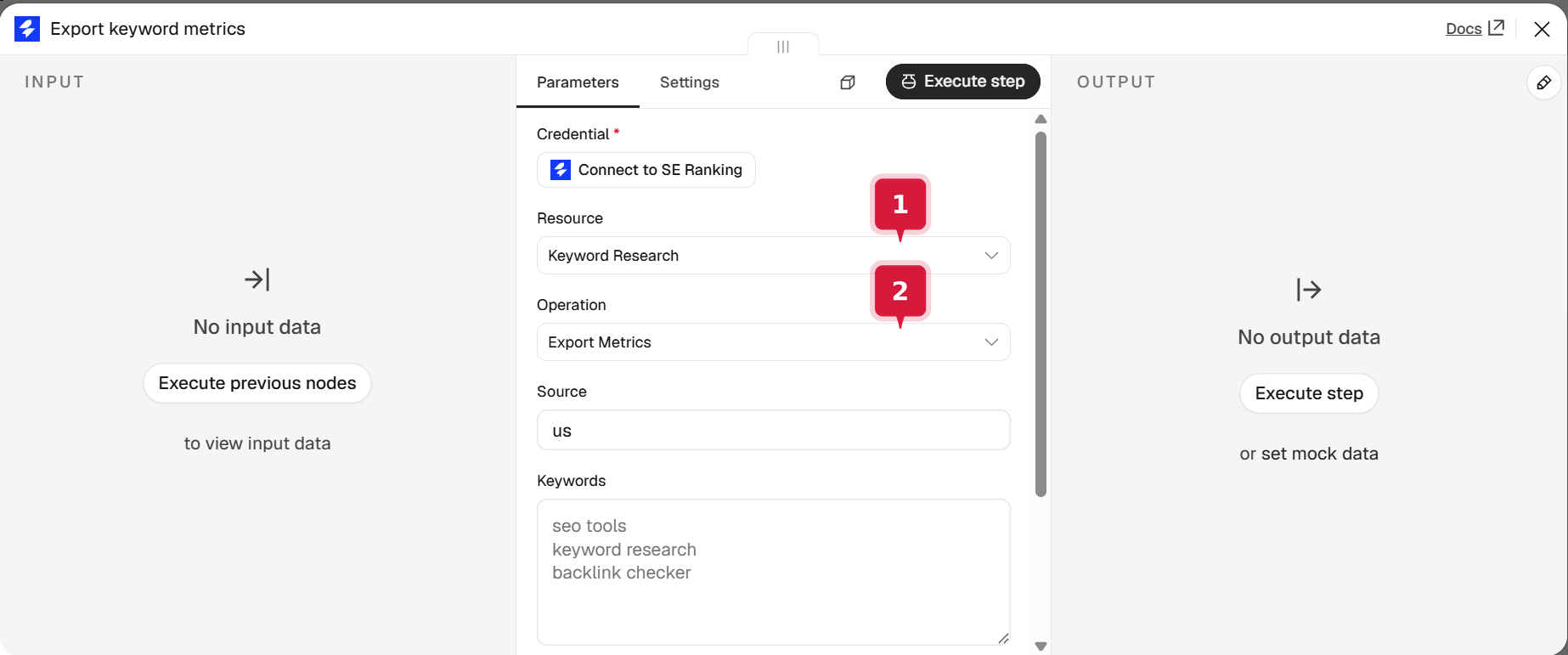
To expand a seed list, chain in Get Similar Keywords or Get Related Keywords. Get Question Keywords finds question phrasing, and Get Longtail Keywords finds lower-volume variations. These operations bill 10 credits per returned keyword (1 for long-tail), so set a limit and add volume or difficulty filters on the node.
Pair the pulls with underperforming queries from Google Search Console, a tactic covered in SE Ranking’s guide to advanced keyword research techniques.
Step 4: Route output to Google Sheets or Slack
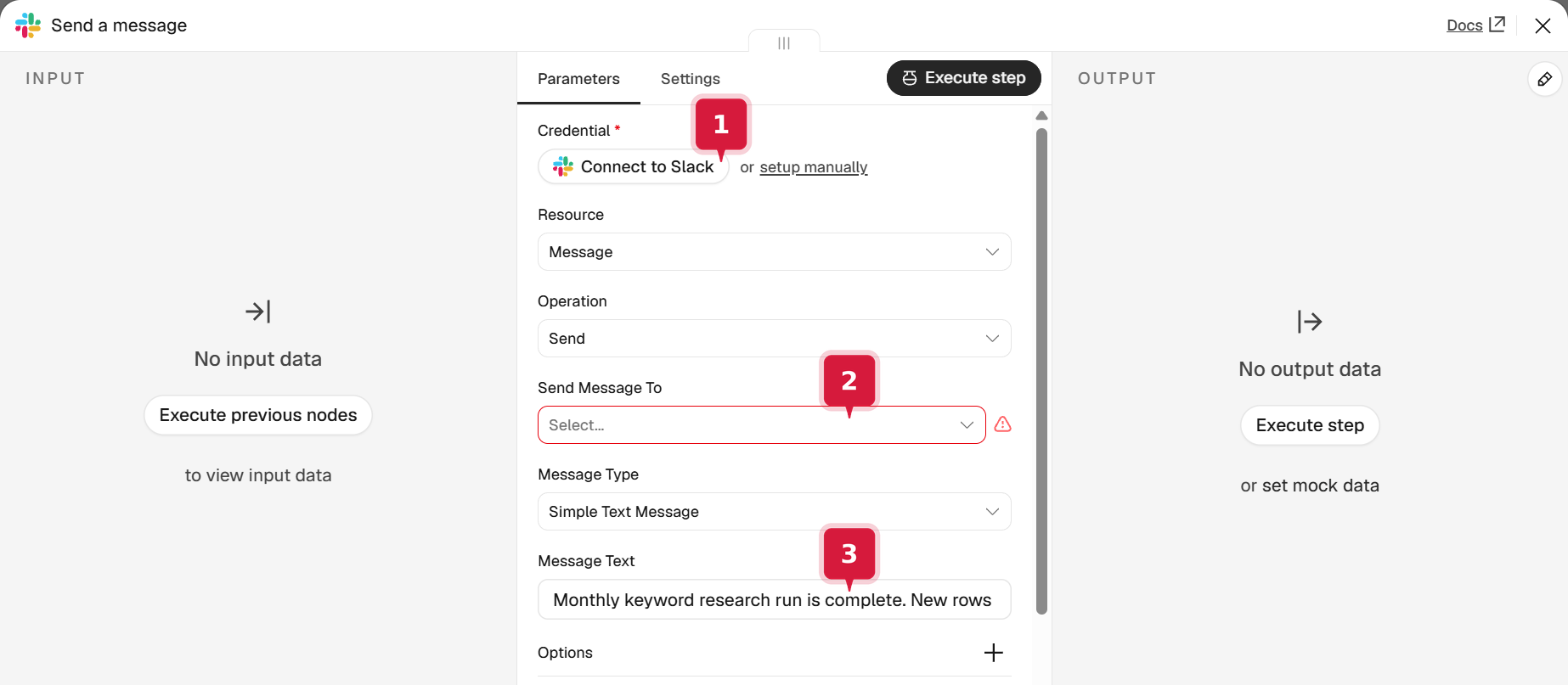
Connect the SE Ranking node output to a Google Sheets node set to “Append Row”. Map each keyword and its metrics to matching columns. Every run appends new rows without overwriting previous data. To notify your team, add a Slack node after Sheets to post a summary when the run completes.
Step 5: Use SE Ranking’s published n8n templates
SE Ranking’s n8n author has published more than nine workflow templates, and the GitHub repository adds a keyword research pipeline example. Two templates matter for keyword research:
- Template 12084 (Research content keywords with SE Ranking and export to Google Sheets) covers the core pull-and-export flow.
- Template 12809 (Find SEO keyword opportunities with SE Ranking, AI search, and Google Sheets) is a separate competitor workflow. It finds top competitors, runs a keyword gap analysis, surfaces recently lost keywords and adds domain-level AI visibility across four AI search engines.
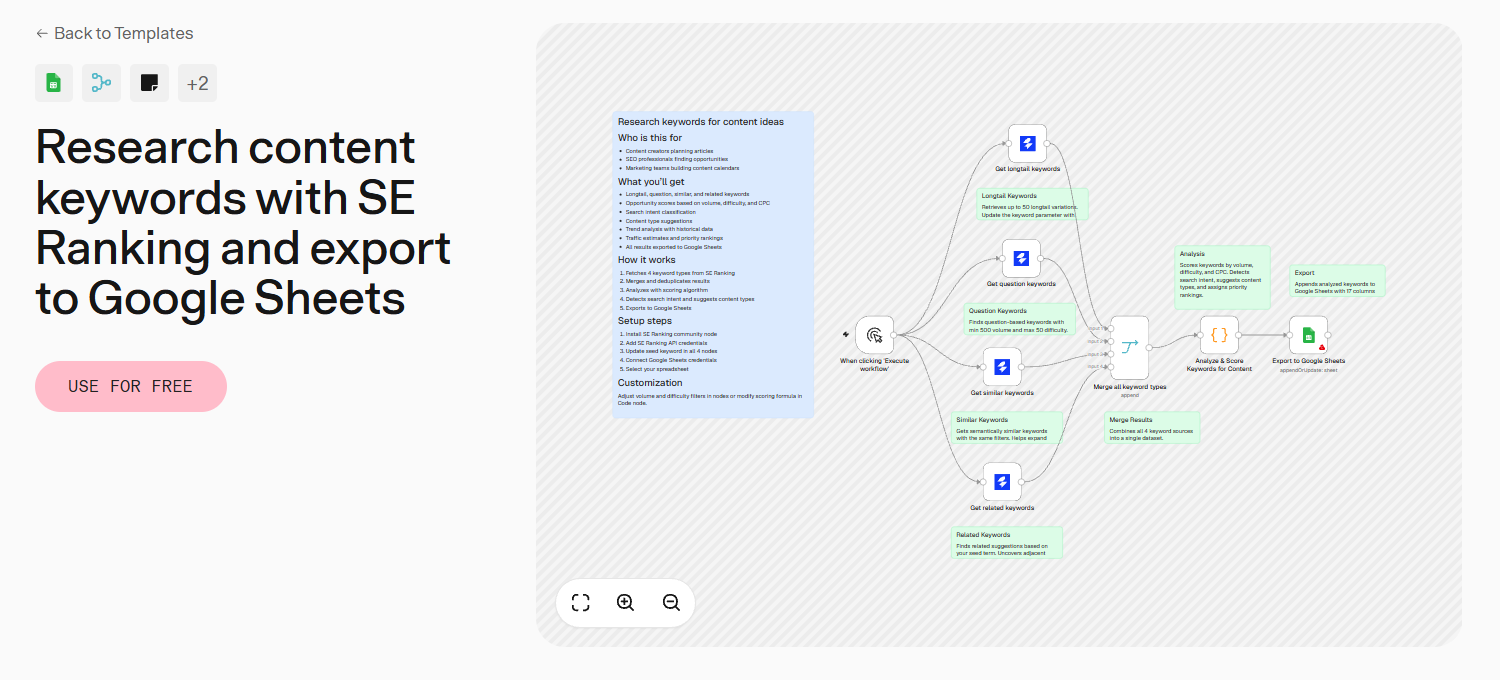
Check the node version a template requires (12809 needs 1.3.5 or later) and re-save credentials if you run node 2.x. Template 12809 calls AI search endpoints, so price it against the credit table above before you schedule it.
The node waits 300 ms between requests. If you still see 429 errors on large runs, turn on Retry On Fail with at least 1,000 ms between tries, or add a Loop Over Items node with a Wait node.
How to automate keyword research with Make
If your team already runs scenarios in Make, adding SE Ranking keyword data is a configuration step on a platform you already use. Make’s app is listed as SE Ranking, and it carries the Verified and Official Vendor badges. Its native modules cover project data and keyword statistics. The keyword suggestion endpoints need the app’s Make an API Call module.
Step 1: Add the SE Ranking app to your Make scenario
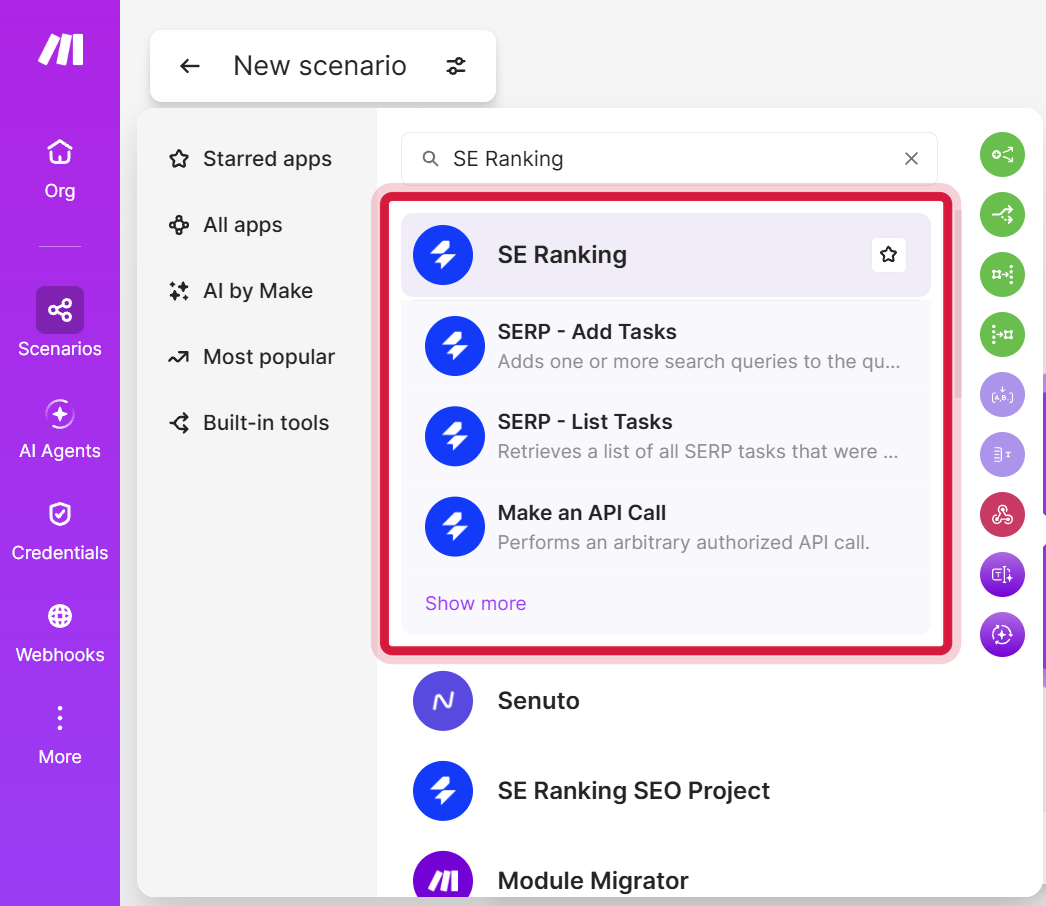
Open Make and start a new scenario. In the module search, type “SE Ranking” and select the SE Ranking app. Create a connection with your SE Ranking API key. The app has 224 modules (136 actions and 88 searches), listed at make.com/integrations/se-ranking-seo-data and documented at apps.make.com/se-ranking.
Step 2: Configure the trigger and keyword input
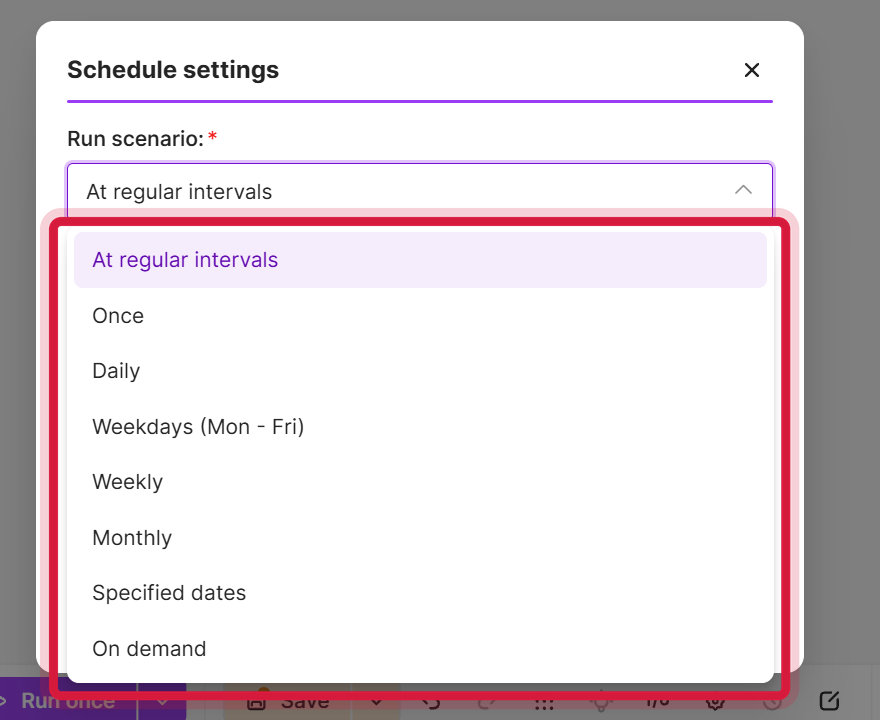
Set your scenario trigger with a Schedule module (daily, weekly or a custom interval) or a Webhook module for event-driven runs. For keyword input, read a tracking column with a Google Sheets module, or use a Set variable module in Tools module for a static list. The Google Sheets route scales better as lists grow.
Step 3: Pull keyword data
For keywords already tracked in an SE Ranking project, use the separate SE Ranking SEO Project app. For arbitrary keyword lists, call the keyword export endpoint with Make an API Call (Step 4).
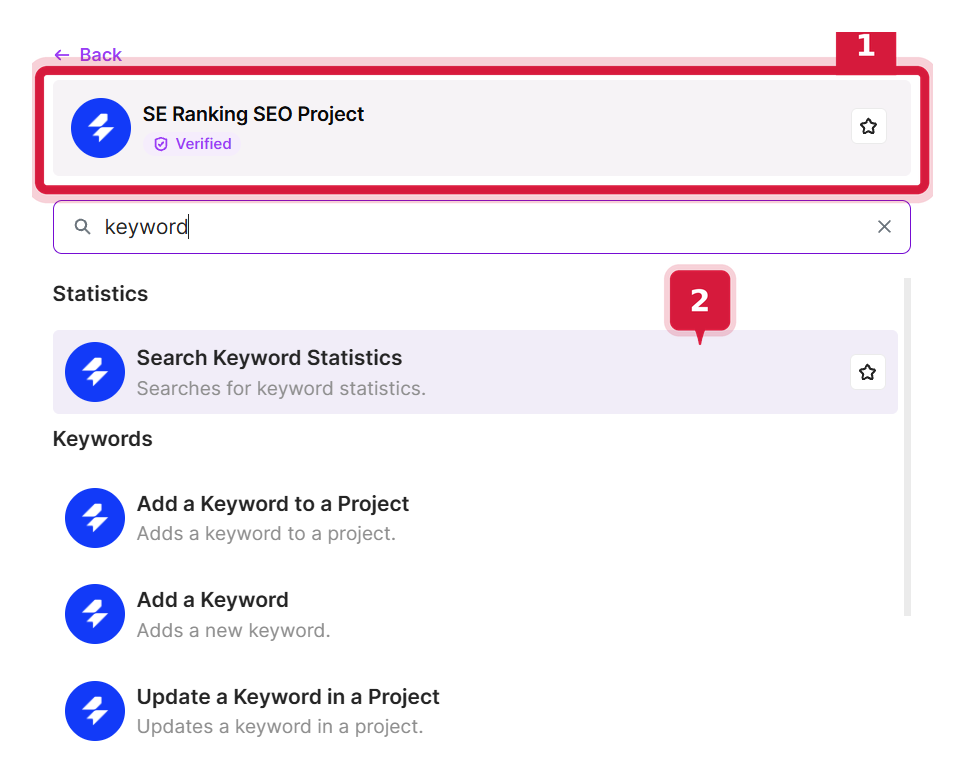
Step 4: Use Make an API Call for deeper data
The SE Ranking app includes a Make an API Call module that reuses your connection’s credentials, so you don’t set an authorization header yourself. Enter the endpoint path you need, for example GET /v1/keywords/similar with source and keyword parameters, or POST /v1/keywords/export?source=us with a JSON body of up to 5,000 keywords. The related and question keyword endpoints follow the same pattern. Set the limit parameter on suggestion endpoints, because they bill per returned keyword.
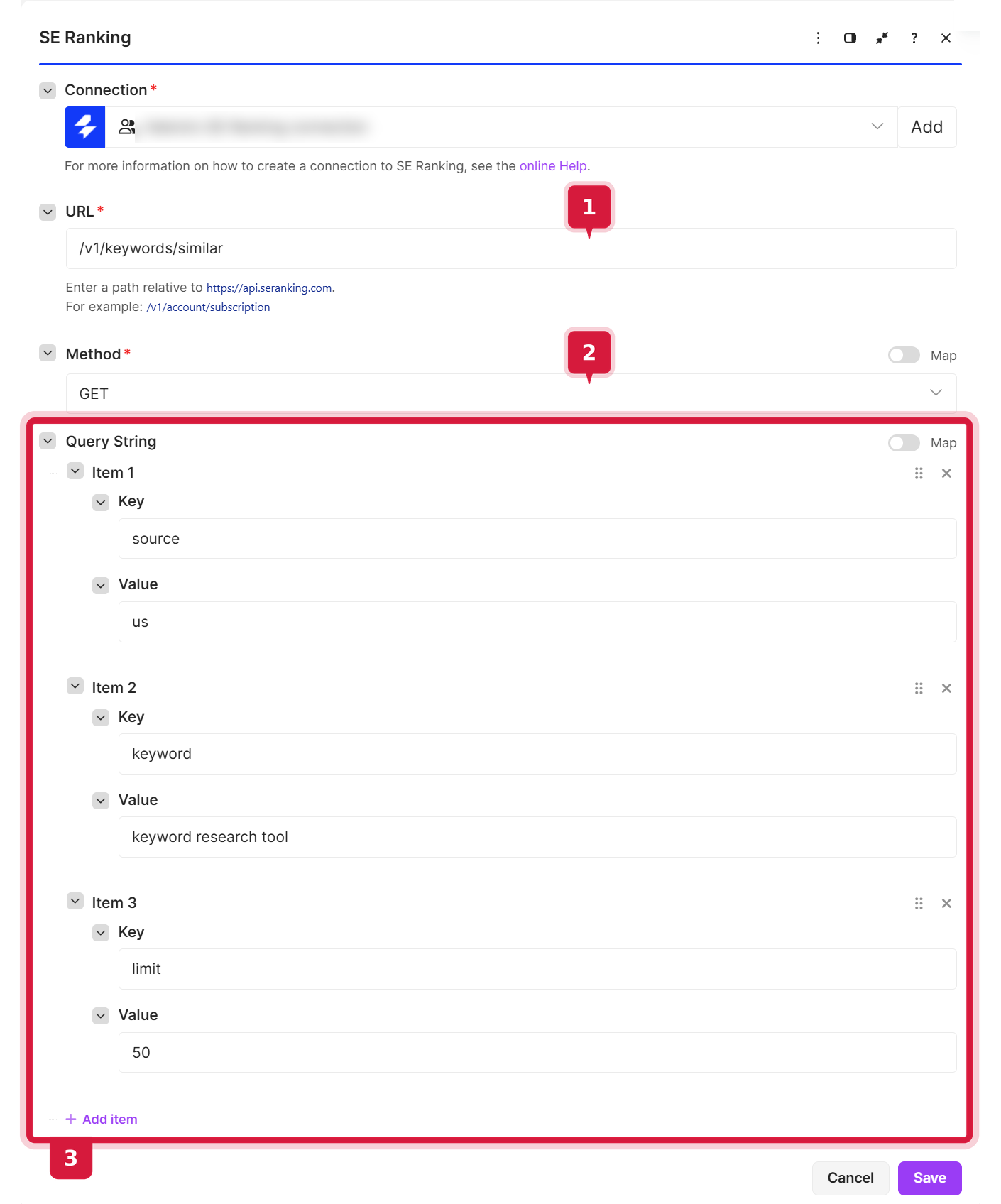
Step 5: Route results to Google Sheets or Airtable
Add a Google Sheets or Airtable module at the end of your scenario and map each keyword and its metrics to matching columns. Run the scenario once manually to verify field mapping before activating the schedule.
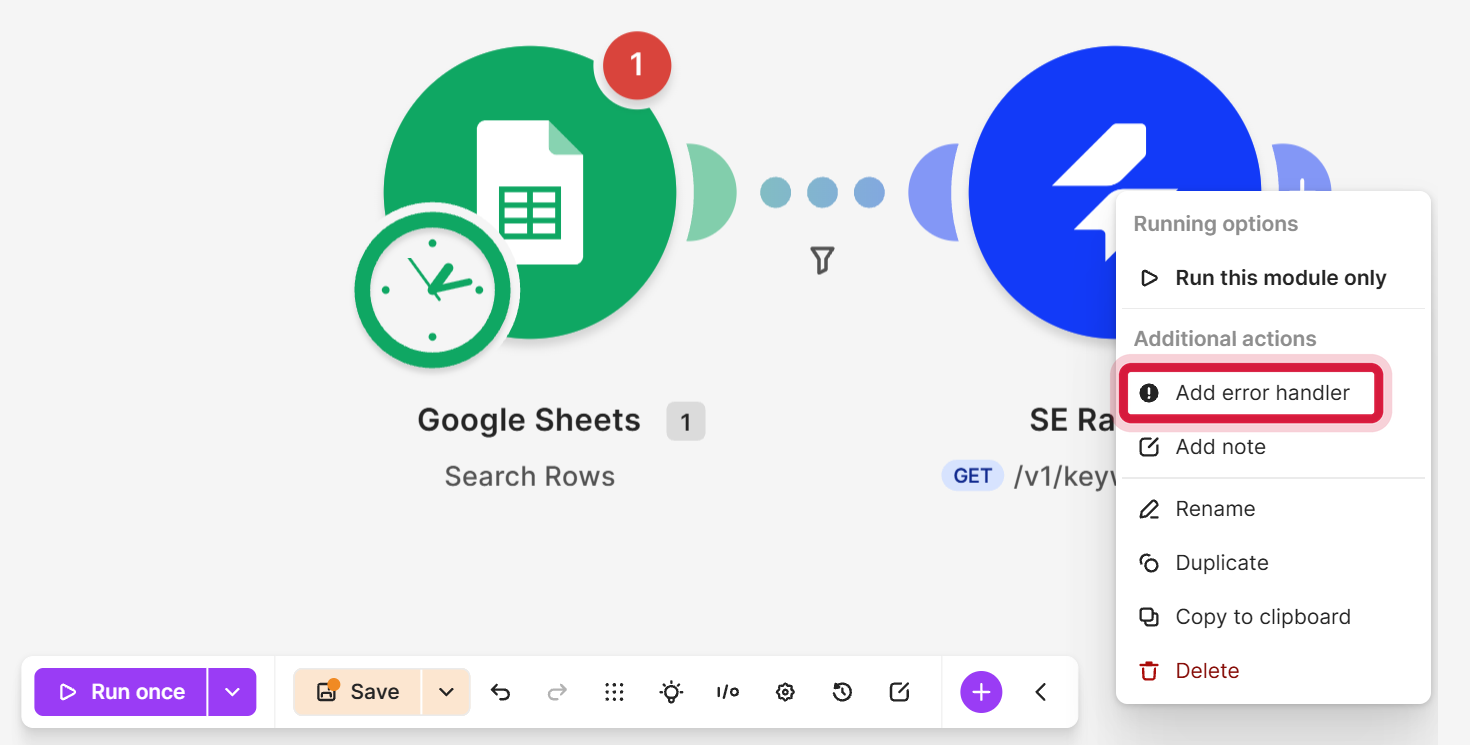
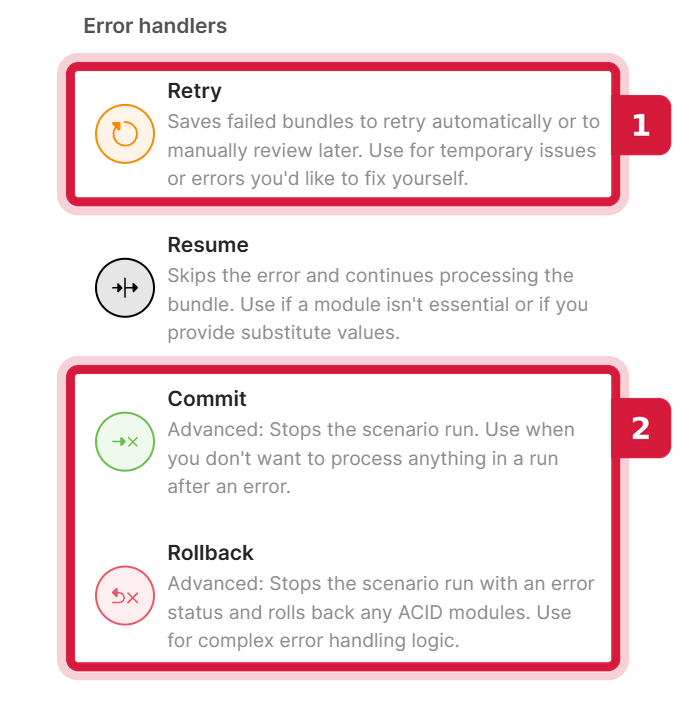
Add an error handler after the API call so a failed request is saved for re-running and you get notified, rather than skipping keyword rows. Right-click the module and select “Add error handler”, choose Retry, and add a Slack or email module on the error route.
If you’d rather stop the run without saving it, choose Commit (keeps the changes already made) or Rollback (reverts them) instead of Retry.
How to automate keyword research with Claude and the SE Ranking MCP
Claude with the SE Ranking MCP suits research where the next question depends on the last answer. You ask in plain language, Claude calls SE Ranking’s tools, and the data comes back inside the session. It can also run on a schedule now, through Claude Code routines.
Step 1: Connect the SE Ranking MCP
The Model Context Protocol (MCP) is an open standard that lets AI agents call external tools. SE Ranking’s remote MCP server sits at https://api.seranking.com/mcp and signs in with OAuth.
- Claude web app or Claude Desktop: add a custom connector named SE Ranking with that URL, then click Connect.
- Claude Code: run
claude mcp add --transport http se-ranking https://api.seranking.com/mcp, then run/mcpin a session to sign in. - Headless runs such as CI: pass your API key in an
X-Api-Keyheader instead of using OAuth. Sub-accounts also connect this way.
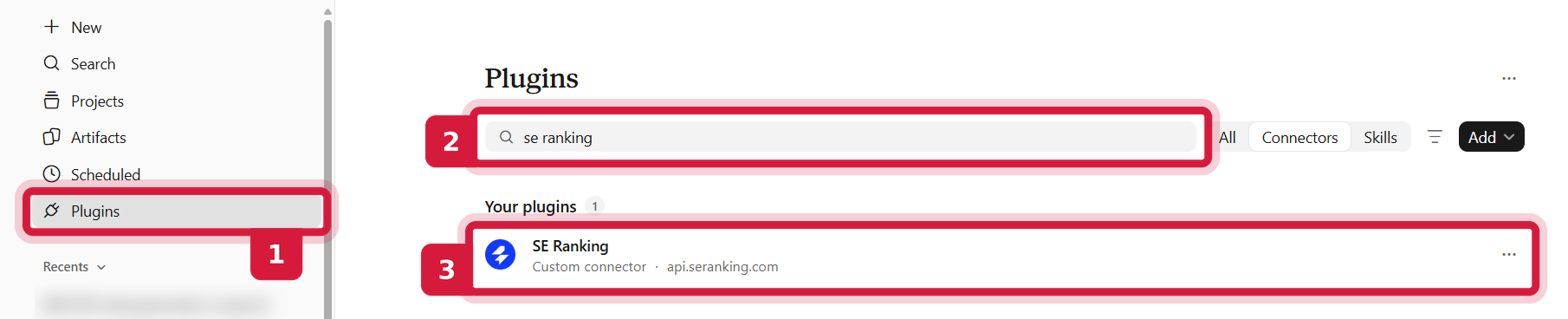
Run /mcp in Claude Code to confirm se-ranking shows as connected with 180+ tools. The whole setup takes about 10 minutes (see our Claude Code guide) and the full steps are listed in the MCP documentation.
Step 2: Query keyword data through Claude
Once the MCP is active, you query keyword research tools and data through natural language prompts. The MCP makes the API call behind each prompt and returns structured data without tab-switching or CSV exports.
Example prompts:
Pull keyword volume, KD, and intent for [seed keyword list] in the US database
Get similar and related keywords for [seed term] and filter to KD under 40
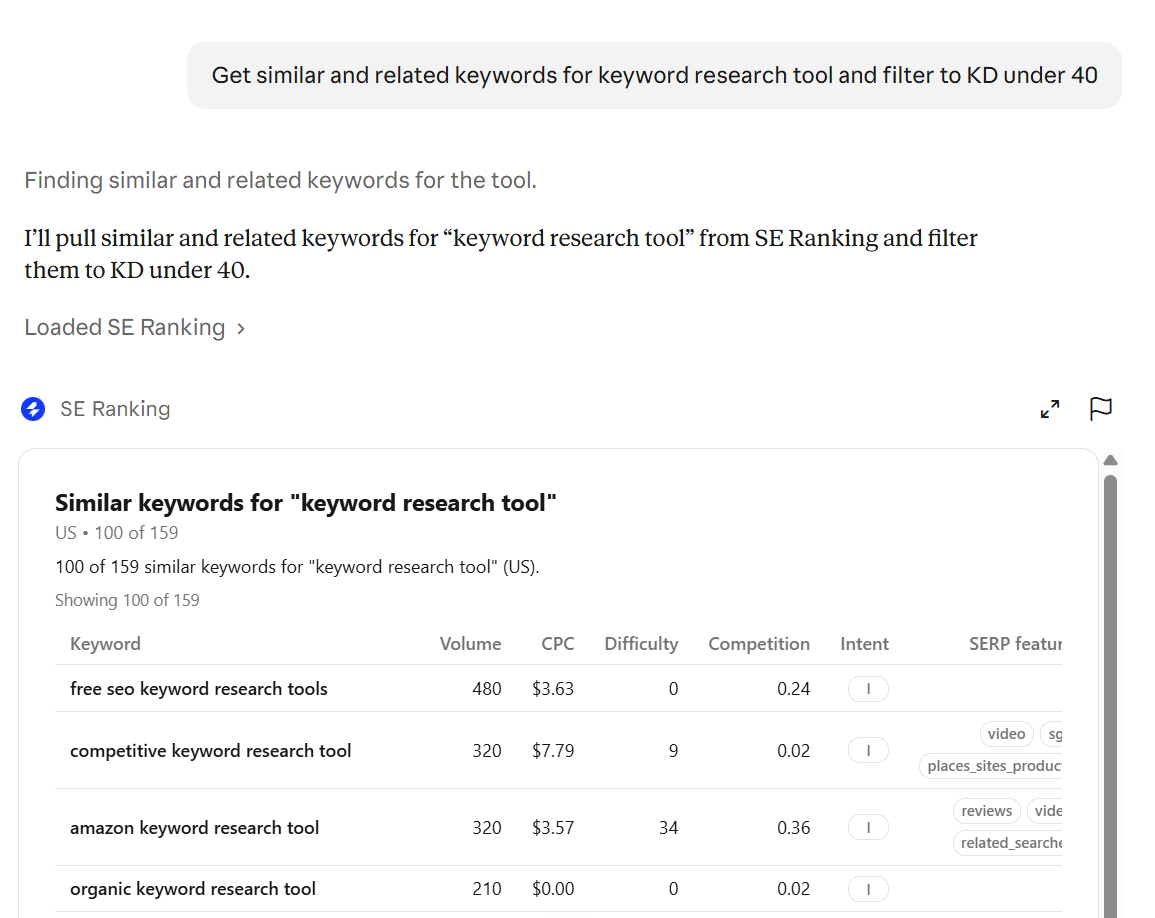
The data comes from the same SE Ranking dataset as the API and the web app, so keyword volumes carry the same monthly refresh.
SE Ranking’s team tested this approach on a full content brief. A task that takes a senior SEO 3 to 4 hours ran in under 10 minutes with Claude Code and the MCP, according to the Claude Code guide. That brief covered domain analysis, competitor research, keyword gaps and SERP analysis, so treat it as an upper bound for keyword research alone. The guide also notes that the output needs human verification.
Step 3: Build a repeatable research script
For teams that need reproducibility without a full workflow platform, Claude Code can write a research script that takes a seed keyword list, calls the keyword metrics and similar keyword tools, and writes a formatted CSV or JSON file. This sits between a one-off prompt and a full n8n pipeline: version-controlled research logic you can hand off or rerun across clients.
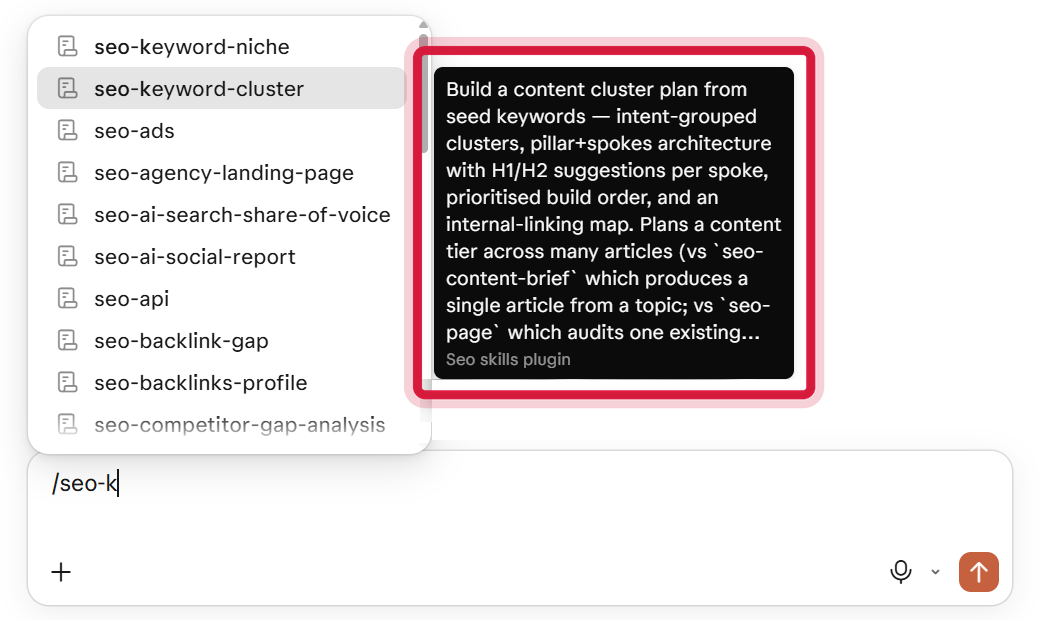
SE Ranking also publishes 32 open-source Claude Skills that wrap the MCP into finished deliverables, including keyword clusters and content briefs. They live in the seo-skills repository.
Once you’ve identified the keyword set worth targeting, feed it into the Rank Tracker to connect your research directly to ongoing performance measurement.
Step 4: Run it on a schedule
Claude Code routines run a saved prompt on a recurring schedule from Anthropic’s cloud. They are available on Pro, Max, Team and Enterprise plans with Claude Code on the web, and you create them at claude.ai/code/routines or with /schedule in the CLI. The routines documentation has the details.
Desktop scheduled tasks also exist, but they skip a run when your computer is asleep. Routines run without approval prompts, so treat the connection as unattended: write the prompt to call only read tools, and review the first few runs before you rely on it.
Step 5: Know what the MCP exposes and what it can change
The MCP gives Claude access to more than 180 tools. They cover:
- Keyword research
- Domain and backlink analysis
- SERP data
- Website audits
- AI search visibility
- Project management
The project management tools can change your account: they create and delete projects and keywords, and they run audits. In an interactive session, you can review each tool call before it runs. For anything unattended, limit the prompt to read-only requests such as keyword and domain data, and leave the project management tools out of it.
Which path fits your workflow: n8n, Make, or Claude
The answer depends on how fixed the workflow is. A repeatable pull suits n8n or Make, while exploratory research suits Claude.
Comparison table: n8n vs. Make vs. Claude
n8n
Built-in (Schedule trigger)
Make
Built-in (Schedule module)
Claude with the MCP
Claude Code routines (cloud) or desktop scheduled tasks; routines run without approval prompts
n8n
Intermediate (node editor)
Make
Low to intermediate (visual builder)
Claude with the MCP
Intermediate (prompting, plus CLI for Claude Code)
n8n
225 operations across 22 resources
Make
224 native modules plus Make an API Call for any endpoint
Claude with the MCP
More than 180 MCP tools
n8n
API credits plus your n8n plan or hosting
Make
API credits plus your Make plan
Claude with the MCP
API credits plus a Claude plan that includes the feature
n8n
Install the node, add one credential, import a template
Make
Add the app, create a connection, build a scenario
Claude with the MCP
About 10 minutes to connect
n8n
Scheduled recurring pipelines
Make
Teams already using Make for other automations
Claude with the MCP
Exploratory research and one-off briefs, plus scheduled read-only prompts
Built-in (Schedule trigger)
Built-in (Schedule module)
Claude Code routines (cloud) or desktop scheduled tasks; routines run without approval prompts
Intermediate (node editor)
Low to intermediate (visual builder)
Intermediate (prompting, plus CLI for Claude Code)
225 operations across 22 resources
224 native modules plus Make an API Call for any endpoint
More than 180 MCP tools
API credits plus your n8n plan or hosting
API credits plus your Make plan
API credits plus a Claude plan that includes the feature
Install the node, add one credential, import a template
Add the app, create a connection, build a scenario
About 10 minutes to connect
Scheduled recurring pipelines
Teams already using Make for other automations
Exploratory research and one-off briefs, plus scheduled read-only prompts
Use n8n when you want a scheduled, reproducible pipeline, your team is comfortable with node-based editors, and you need broad keyword operation coverage.
Use Make when your team already has Make scenarios running and you want to add keyword research alongside them. It works well for project keyword data and TOP-10 results, and Make an API Call covers the rest.
Use Claude with the SE Ranking MCP when your questions change as the data comes back, you are prototyping a workflow or building a one-off brief, or you want keyword data and LLM analysis in a single session without configuring nodes.
Frequently asked questions
Yes. Pass the client domain or seed keyword list as a variable instead of hardcoding it in the node. A single n8n workflow can loop through a client list stored in a Google Sheets column, run the SE Ranking node per row, and write outputs to separate tabs or files per client. One API credential covers every run, and only the input data changes.
Two levers keep usage predictable: endpoint choice and filtering. Keyword metrics batch up to 5,000 keywords per request according to the Keyword Research API documentation, so cost concentrates in the suggestion endpoints (10 credits per returned keyword).
Cap the limit parameter, filter by volume and difficulty, and skip keywords already in your tracking dataset with a conditional node in n8n. Check units_left from the account subscription endpoint before and after each run to see real costs.
The MCP removes the integration layer. You query data in natural language instead of writing endpoint logic and handling pagination yourself. The trade-off is control: the MCP includes tools that can change your account, and a scheduled routine runs unattended. For recurring pipelines you want to audit step by step, n8n or Make remains the more transparent choice.
Yes, in two ways. Keyword endpoints return SERP features for each keyword, including AI Overviews (listed as sge), and you can filter on them. To see whether your domain is cited across ChatGPT, Perplexity, Gemini, AI Overviews and AI Mode, use SE Visible API. n8n template 12809 adds domain-level AI visibility to a keyword gap workflow.
Yes. Claude Code routines run a saved prompt on a recurring schedule from Anthropic’s cloud, on plans that include Claude Code on the web. Routines run without approval prompts, so write the prompt to request data only and check the first few runs. Desktop scheduled tasks also exist, but they skip a run if your computer is asleep.
When the research is exploratory. If you need to ask follow-up questions mid-session, filter by criteria that emerge from the data, or combine several keyword pulls into one structured brief, Claude handles that interactively without reconfiguring nodes. For fixed pulls where the same query runs on a schedule with predictable output, n8n or Make is easier to audit and rerun.
If you manage several client accounts, start with n8n and template 12084. It gives you a scheduled pull you can audit, and a 20 keyword test run shows your real credit costs before you scale. If your team already runs Make, add the SE Ranking app and use Make an API Call for the suggestion endpoints. If your questions change as the data comes back, connect the MCP in Claude and keep unattended prompts to read-only requests.
Whichever path you pick, send the keyword set you settle on to the Rank Tracker, so the research feeds ongoing measurement in the SE Ranking platform.